
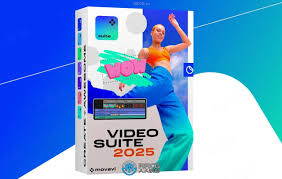
How to Use Movavi Video Suite 2025
Movavi Video Suite 2025 is a comprehensive multimedia software package designed to facilitate video editing, screen recording, and conversion tasks.
This suite is particularly beneficial for both novice users and seasoned professionals seeking an intuitive interface coupled with powerful functionalities.
This document aims to elucidate the essential features of Movavi Video Suite 2025 and provide a structured approach for its effective utilization.
Installation Process
To commence using Movavi Video Suite 2025, users must first download the software from the official website. The installation process is straightforward:
- Download: Navigate to the official Movavi website and select the appropriate version for your operating system.
- Run Installer: Once downloaded, locate the installer file and double-click it to initiate the installation wizard.
- Follow Prompts: Adhere to the on-screen instructions, which typically include agreeing to terms of service and selecting an installation directory.
- Launch Application: Upon successful installation, launch Movavi Video Suite from your desktop or applications folder.
Key Features Overview
Movavi Video Suite 2025 encompasses several core components that enhance its utility:
- Video Editor: This feature allows users to edit videos through a user-friendly timeline interface. Users can trim clips, apply transitions, add text overlays, and incorporate audio tracks seamlessly.
- Screen Recorder: The screen recording tool enables users to capture their computer screen in high quality. It supports various recording modes including full-screen capture and custom area selection.
- Media Converter: The media converter facilitates quick conversion between different video formats without compromising quality. It supports a wide range of file types suitable for various devices.
- Montage Maker: This component aids in creating dynamic slideshows or video montages by integrating images, videos, and music effortlessly.
Utilizing the Video Editor
To effectively use the video editor within Movavi Video Suite 2025:
- Import Media Files: Begin by importing your media files into the project workspace via drag-and-drop functionality or by clicking on “Add Media Files.”
- Editing Tools: Utilize tools such as cutting, splitting, and merging clips as necessary. Employ transitions between scenes for smoother visual flow.
- Text Overlays: Enhance your video by adding titles or captions through the text tool located in the toolbar.
- Audio Management: Adjust audio levels or add background music by importing audio files into your project timeline.
- Exporting Your Project: Once editing is complete, export your project by selecting “Export” from the menu bar and choosing your desired format and resolution settings.
Screen Recording Techniques
For effective screen recording:
- Select Recording Area: Open the screen recorder tool and select whether you wish to record full-screen or define a custom area.
- Configure Settings: Adjust audio settings if you intend to capture system sounds or microphone input during recording.
- Start Recording: Click on “Record” when ready; a countdown will precede actual recording allowing you time to prepare.
- Stop Recording: To end your session, click on “Stop.” You will then have options to save or edit your recorded content directly within Movavi’s interface.
Conclusion
In conclusion, Movavi Video Suite 2025 offers an extensive array of tools that cater to diverse multimedia needs ranging from basic video editing tasks to advanced screen recordings and conversions.
By following this structured approach—beginning with installation through effective utilization of its key features—users can maximize their productivity while achieving high-quality results in their projects.
Whether one is creating educational content, marketing materials, or personal videos, mastering this suite can significantly enhance one’s creative capabilities in digital media production.
Sincerely, G & G”s

 gadget and gizzmo"s