
How to Convert Video Formats on Mac: A Step-by-Step Guide
Are you struggling with incompatible video formats on your Mac? Whether you’re a content creator, editor, or just someone who loves watching videos, having the right video converter can make all the difference. In this post, we’ll explore how to easily convert video formats on Mac using Movavi Video Converter.
Why Convert Video Formats?
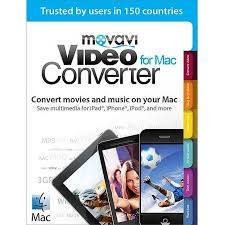
Different devices and platforms support different video formats. For instance, your camera might shoot in AVCHD, while your iPhone prefers MP4. Converting video formats ensures your files are compatible with various devices and software, making it easier to share and enjoy your videos.
Introducing Movavi Video Converter
Movavi Video Converter is a powerful yet user-friendly tool designed to simplify video conversion on Mac. With support for over 180 formats, it allows you to convert, edit, and enhance your videos with ease. Here are some key features:
- Fast Conversion: Use SuperSpeed mode for lightning-fast conversions without losing quality.
- Basic Editing Tools: Trim, crop, rotate, and adjust colors and sound to fine-tune your videos.
- Lossless Compression: Reduce file sizes without compromising quality, perfect for storing or sharing videos.
- AI-powered Upscaling: Enhance video quality with AI-driven upscaling technology.
How to Convert Video Formats with Movavi

- Download and Install: Get Movavi Video Converter from the official website and install it on your Mac.
- Add Your Files: Import the videos you want to convert by dragging and dropping them into the app.
- Choose Output Format: Select the format you need from the extensive list of supported formats.
- Customize Settings: Use the editing tools to trim, crop, or adjust your video as needed.
- Convert and Save: Click “Convert” and choose where to save your new file.
Tips for Choosing the Right Format
- MP4: A versatile format compatible with most devices and platforms.
- MOV: Ideal for high-quality videos, especially if you’re working with professional equipment.
- AVI: Suitable for storing high-quality videos with minimal compression.
Conclusion
Converting video formats on Mac doesn’t have to be complicated. With Movavi Video Converter, you can easily convert, edit, and enhance your videos in just a few clicks. Whether you’re a beginner or a pro, this tool offers the flexibility and features you need to get the job done. Try it out today and take control of your video files!
Best regards,
Gadgets & Gizzmo’s
- Fast and easy video conversion in 180+ formats
- Basic video editing tools to enhance your clips
- Lossless compression to save storage space
- AI-powered upscaling for sharper videos
- Exclusive tips and tricks for video creators

 gadget and gizzmo"s