

Editing photos can transform ordinary images into stunning visual masterpieces. Whether you’re a beginner or an experienced photographer, utilizing Movavi Photo Editor effectively can elevate your work. Here are some expert tips to help you achieve breathtaking results.
1. Start with High-Quality Images
Before diving into editing, ensure you start with high-resolution images. The better the quality of your original photo, the more flexibility you’ll have when editing. Avoid using heavily compressed images, as they can limit your editing options and lead to poor final results.
2. Familiarize Yourself with the Interface
Movavi Photo Editor offers a user-friendly interface that makes it easy to navigate. Spend some time exploring the various tools available:
- Basic Tools: Crop, rotate, and resize your images effortlessly.
- Enhancement Features: Use automatic adjustments to improve brightness, contrast, and saturation with one click.
- Filters and Effects: Experiment with different filters to give your photos a unique look.
Understanding where everything is located will streamline your editing process.
3. Use Auto Enhance Wisely
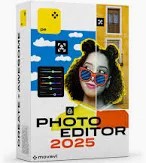
The Auto Enhance feature is a fantastic starting point for any image. It automatically adjusts color balance, brightness, and contrast. However, don’t rely solely on this tool; always review the changes it makes. Sometimes manual adjustments can yield even better results.
4. Master Color Correction
Color correction is crucial for achieving stunning photos. Movavi Photo Editor allows you to tweak individual colors using the color adjustment sliders:
- Hue: Adjust the overall tint of your image.
- Saturation: Increase or decrease the intensity of colors.
- Brightness and Contrast: Fine-tune these settings to create depth in your photos.
Taking the time to perfect color correction can dramatically enhance your image’s appeal.
5. Utilize Background Removal
If you want to isolate a subject or change backgrounds entirely, use Movavi’s background removal tool. This feature allows you to cut out unwanted elements easily or replace backgrounds to fit your vision.
- Precision Selection: Use the brush tool for detailed selection of edges.
- Background Options: Choose from pre-set backgrounds or upload your own for customization.
This technique can make your subject stand out and add a professional touch to your work.
6. Add Text and Graphics

Incorporating text or graphics into your images can create engaging visuals perfect for social media or marketing materials:
- Font Selection: Choose fonts that match the tone of your image.
- Text Effects: Apply shadows or outlines to make text pop against busy backgrounds.
- Graphics: Add stickers or logos for branding purposes.
Remember not to overcrowd the image; simplicity often leads to elegance.
7. Save in Multiple Formats
Once you’ve perfected your photo, save it in various formats depending on your needs:
- JPEG: Best for online sharing due to smaller file size.
- PNG: Ideal for images requiring transparency.
- TIFF: Best for high-quality prints due to its lossless nature.
By saving in multiple formats, you ensure versatility in how you use your edited images.
8. Practice Makes Perfect
Finally, the key to mastering photo editing is practice. Take time to experiment with different tools and techniques in Movavi Photo Editor. Over time, you’ll develop a unique style that reflects your artistic vision.
Conclusion
With these Movavi photo editing tips, you’re well on your way to creating stunning images that captivate viewers. Remember to start with quality images, familiarize yourself with the software, and don’t hesitate to experiment with various features. Happy editing!
Gadgets & Gizzmo’s
Here’s why you should consider subscribing:
– **Easy to Use**: No need to be a tech whiz! The interface is straightforward, making it perfect for everyone.
– **Tons of Features**: From basic edits like cropping and adjusting brightness, to fun filters and effects—there’s so much you can do!
– **Regular Updates**: When you subscribe, you’ll always have access to the latest features and improvements.
Ready to transform your photos? Subscribing is quick and simple. Give it a shot—you won’t regret it!

 gadget and gizzmo"s